This guide explores multiple options for incorporating video responses in Canvas Discussions and Assignments, including embedding MediaSpace videos, using Google Vids, and uploading video files.
Should I use video in my activities?
Asking students to use video instead of text for discussions and other assignments in an online course can increase student engagement, foster a sense of community, and accommodate diverse communication styles. Offering multiple ways to articulate ideas allows learners to express themselves more naturally and build real-world speaking skills.
It is also important to note that, while video discussions can enhance engagement and connection, they may not be ideal for every student. Factors like limited internet access, anxiety about being on camera, and accessibility needs can sometimes make recording a video a barrier rather than a benefit. Consider offering flexible response options, such as audio or text, and make it clear that students can choose a format that works best for them.
How do I prepare for a video activity in Canvas?
The following sections outline how to set up video activities in Canvas and the steps students will take to share their videos. Familiarizing yourself with this process will help you guide students more effectively and anticipate common questions.
1. Create the activity space and provide clear instructions
Begin by either creating a Canvas Discussion forum or creating a Canvas Assignment . Be sure to include a detailed prompt that specifies what you would like your students to post. Ideally, the instructions should:
- Set clear expectations: Provide instructions on preferred video length, quality, and submission methods.
- Establish standards for engagement: Clearly explain how students should interact with one another.
- Provide clear assessment criteria: Consider creating a rubric showing how you will evaluate the video.

Canvas Commons
Access PSU Course Content Templates!
The Office of Academic Innovation offers a collection of Canvas templates for Portland State faculty to help you build accessible, easy-to-navigate courses.
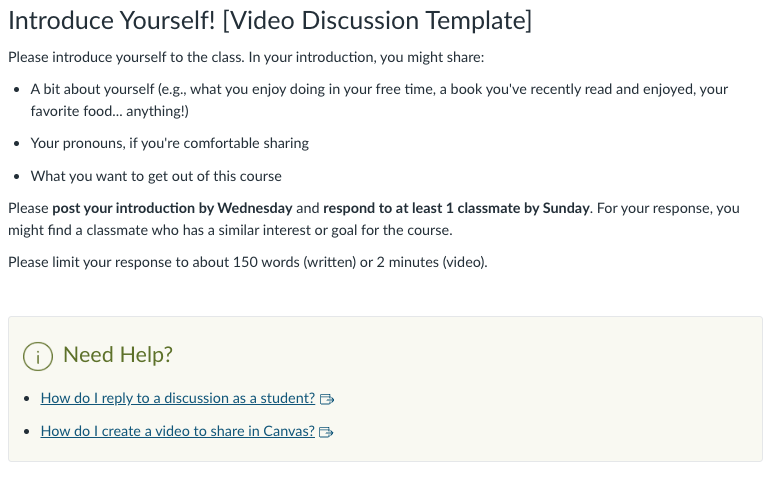
Video Discussion Template
Example class introduction assignment with links to support materials for your students.
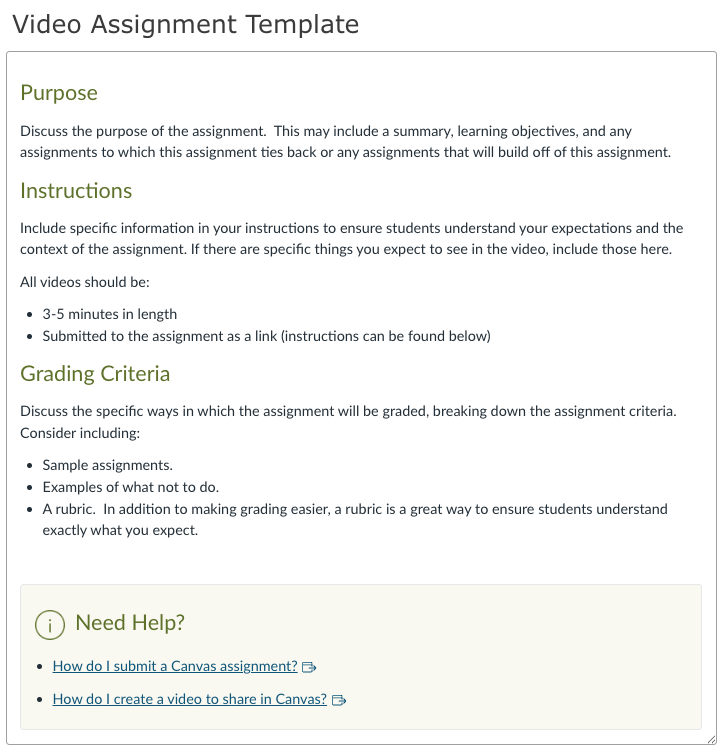
Video Assignment Template
Video assignment template that includes prompts to help you build your own video assignment. Also includes links to student support materials.
To access these templates, log in to Canvas and select Commons in the global navigation menu on the left. Then, Filter the results by toggling on the “Only Portland State University Approved Resources” switch. Learn more about how to download Canvas Commons resources!
2. Familiarize yourself with the steps for creating and sharing videos
We recommend that students create their video in another tool, then link the video file to the discussion reply or assignment submission folder. This approach ensures that classmates and instructors can view videos on any device, desktop or mobile, since videos recorded directly in Canvas may not display consistently across platforms.
While videos can be created with many different tools, we recommend sharing videos either via Google Vids or MediaSpace. Instructions for using both of these platforms are included in the templates above, but you may also want to share the link below with your class separately:
Canvas video recorder caveat: Potential reliability issues
Students may notice an option to record video directly in Canvas using the Canvas Video Recorder. The Canvas Video Recorder can be unreliable due to Wi-Fi connectivity, browser compatibility, or other recording glitches and lacks some accessibility features. We recommend using an alternative recording option.
This article was last updated .
You might also like


















👋Need more help?
Submit a support request through our Faculty Support portal for assistance.