Getting started with Panorama at PSU
Panorama is an accessibility checker and remediation tool that works directly within your Canvas course. It offers a range of features to support accessible course design, including:
- Automatic accessibility evaluation with visual accessibility scores
- Guidance for faculty on how to remediate accessibility issues
- Instant access to alternative formats for students
Starting May 2026, Panorama is available in all Canvas courses. Panorama is currently offered as a one-year pilot.
What does Panorama do in Canvas?
Panorama automatically scans your files to detect issues relating to Web Content Accessibility Guidelines (WCAG). It generates accessibility scores and provides guidance to help you improve the accessibility of your materials.
Additionally, Panorama enables students to access content in alternative formats, such as audio or e-reader files. In many cases, accessibility errors can be fixed directly in Canvas using Panorama. More complex issues, especially in PDFs, may require remediation in PDF editing software such as Foxit or Adobe Acrobat Pro.
Panorama evaluates:
- Canvas Pages, Assignments, Discussions, and Announcements
- Uploaded files (DOC, DOCX, PPT, PPTX, PDF, HTML, GIF, XLS, XLSX, ODT, ODP, ODS, and RTF types)
Panorama does not evaluate:
- Canvas Quizzes
- Google Docs, Slides, or Sheets
- Linked webpages
- Most LTI-linked content (e.g., McGraw Hill, ALEKS, Pearson)
Accessibility checkers do not provide a complete and accurate picture of whether a document is fully accessible. While they can identify major issues, they do not have enough context to determine whether the content is fully accessible for its intended purpose after remediation.
You will find an Accessibility Score button next to most items in your course.
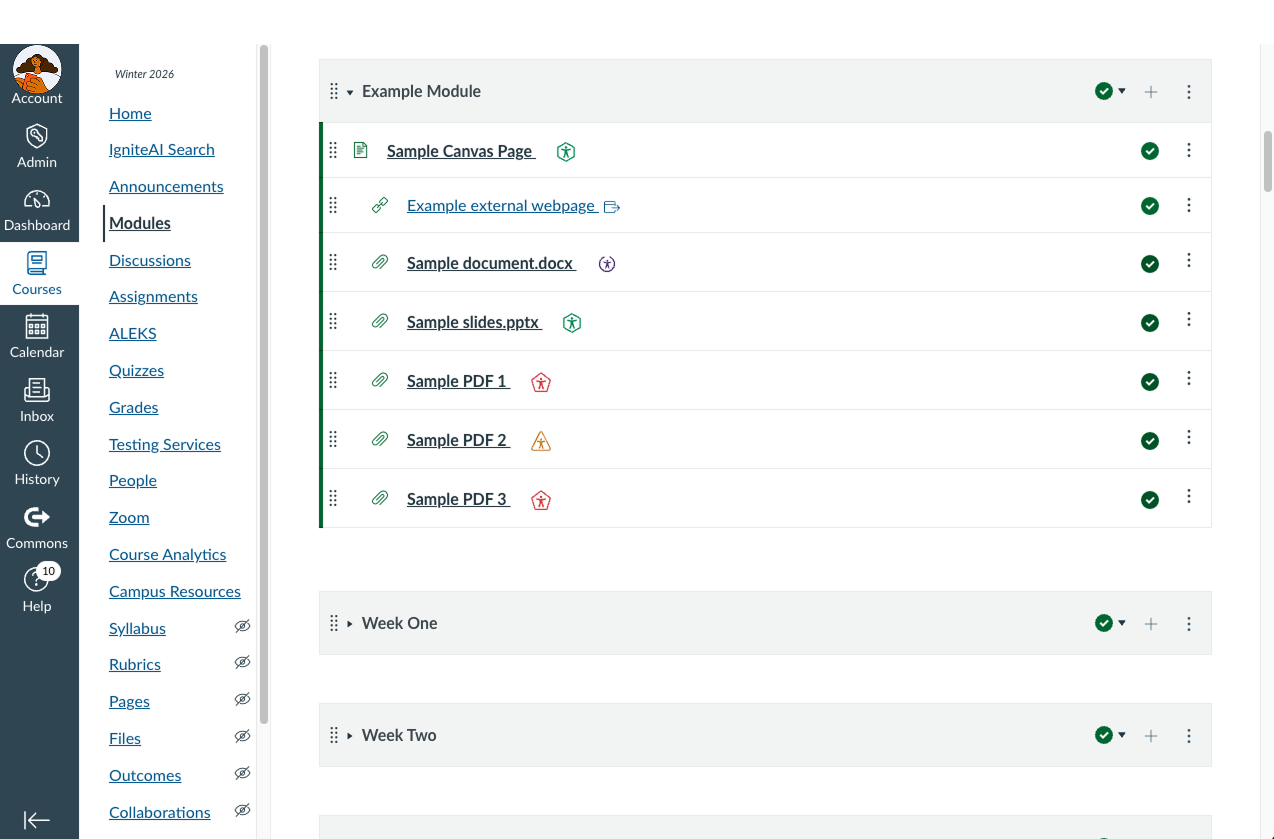
The icon varies based on the file’s accessibility score:
- Green octagon or hexagon icon: High accessibility score
- Yellow triangle icon: Medium accessibility score
- Red hexagon icon: Low accessibility score
- Grey prohibition icon: Your institution has disabled the alternative formats for this document
- Purple circle icon: File is being processed for accessibility
- Blue circle icon: Accessibility icon (Student View)
Select the icon to open the Alternative Formats Menu, which includes both alternative format options and an accessibility report.
Panorama includes many remediation tools to help you improve the accessibility of your course content. While some issues can be fixed automatically, always review proposed changes before implementing them. Additionally, Panorama can be used to remediate many common accessibility issues; however, more complex issues, especially with PDFs, may require editing in software such as Foxit or Adobe Acrobat Pro.
The Alternative Formats Menu provides options to convert documents into different formats to support accessibility and varied learning and access needs.
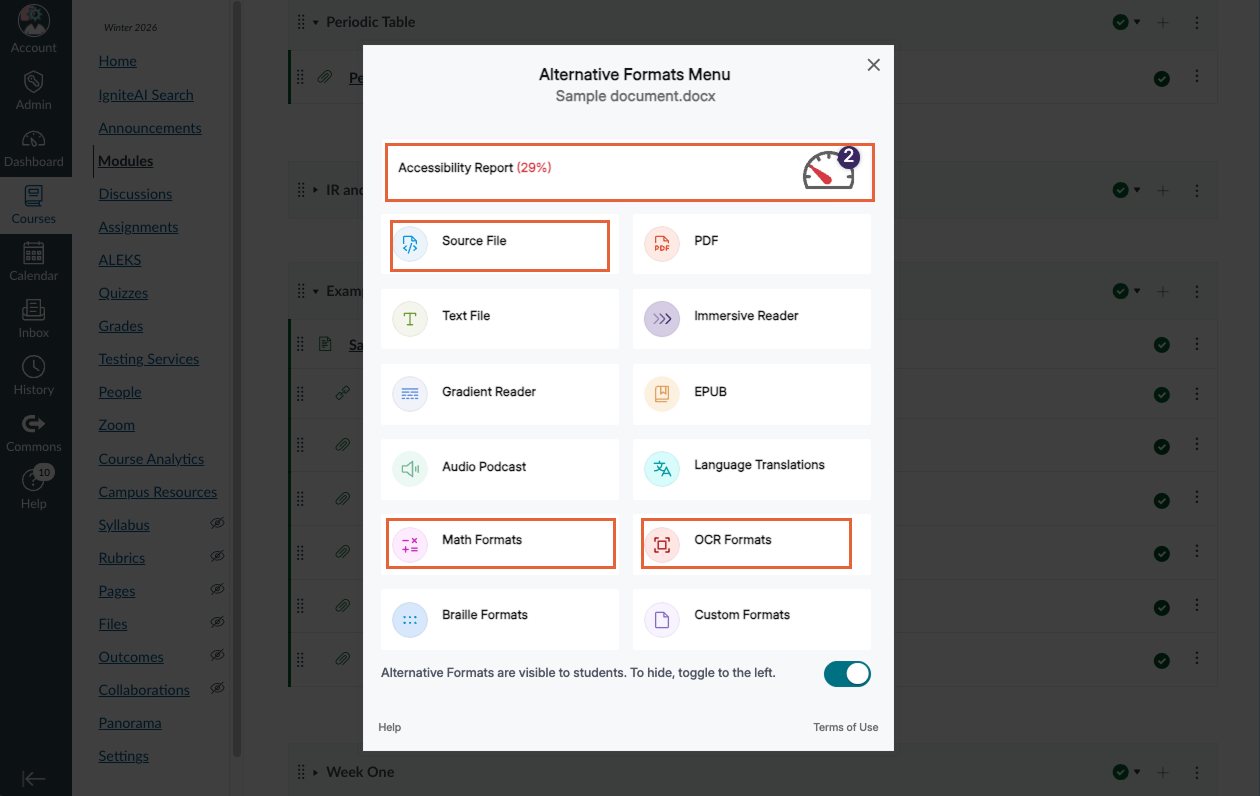
Common alternative formats you might use are:
- Source File: Download the document in its original format
- OCR: Convert images with text into machine-readable text for screen readers. (Note: there are multiple OCR options available)
- Math Formats: Convert documents containing math equations into LaTeX, MathML, MathText (i.e., numbers and symbols into text descriptions), or MP3 audio
Review Getting Alternative Formats for Your File (instructors) for a complete list of available formats and their respective features.
If your file is a PDF with a score of zero, the Alternative Formats Menu will be limited until you generate an OCR version of your file.
Select the Accessibility Report at the top of the Alternative Formats Menu to review and address identified issues.
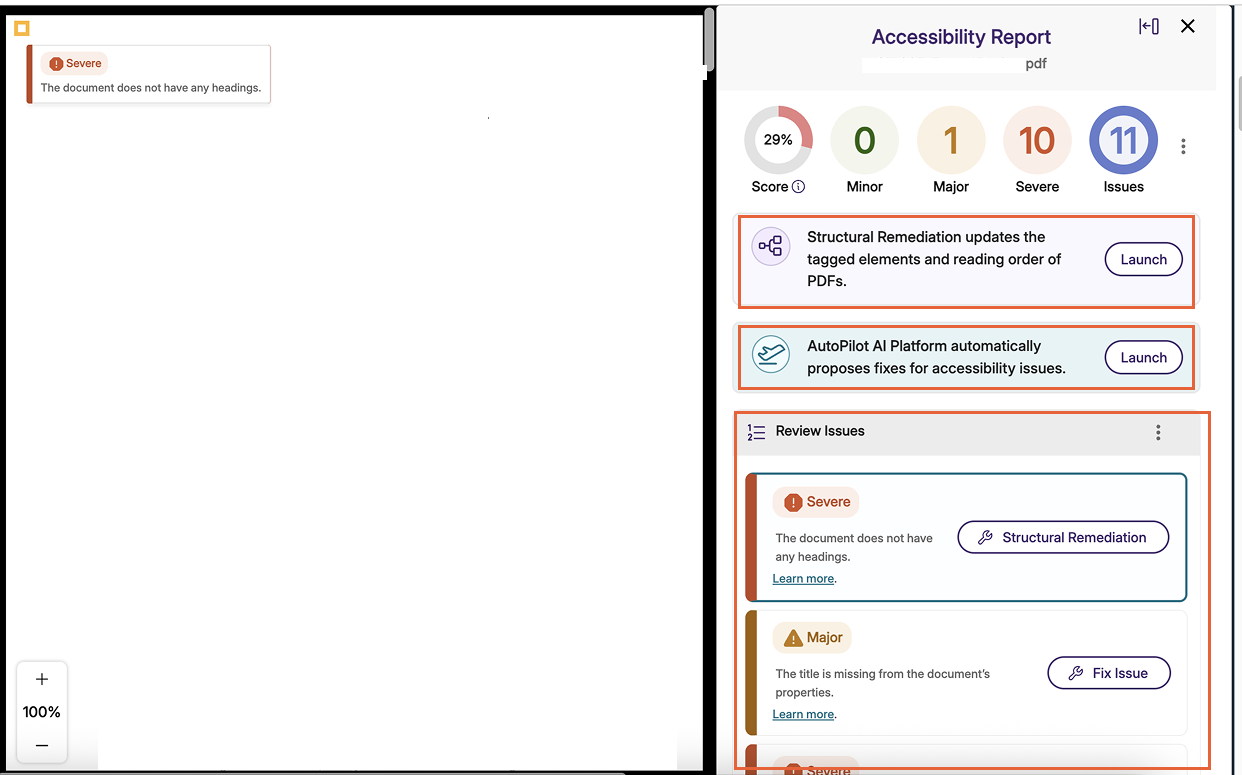
Depending on the file, you may see one or more of the following review and remediation options available.
- Review Issues lists the identified issues in the content and provides guidance for resolving them.
- Structural Remediation provides access to the underlying formatting of PDFs and other documents for improving accessibility. This may include tagging headings and other elements, adding document titles, and adjusting the reading order. Learn more about how to use Structural Remediation.
- AutoPilot is an AI-powered remediation tool that suggests accessibility fixes for PDFs and other files. Suggestions may include generating alt text, tagging reading order, and adding table headings. Learn more about how to use AutoPilot.
Both Structural Remediation and Autopilot draw from a shared pool of account credits. While all PSU instructors receive an initial allocation, you can request additional credits by contacting the OAI Faculty Support Desk.
Once you have applied the fixes, the Update Document section lists the staged fixes ready to be saved with the Apply Changes button. Additionally, you can upload a new file to replace the inaccessible version in the Update Document section.
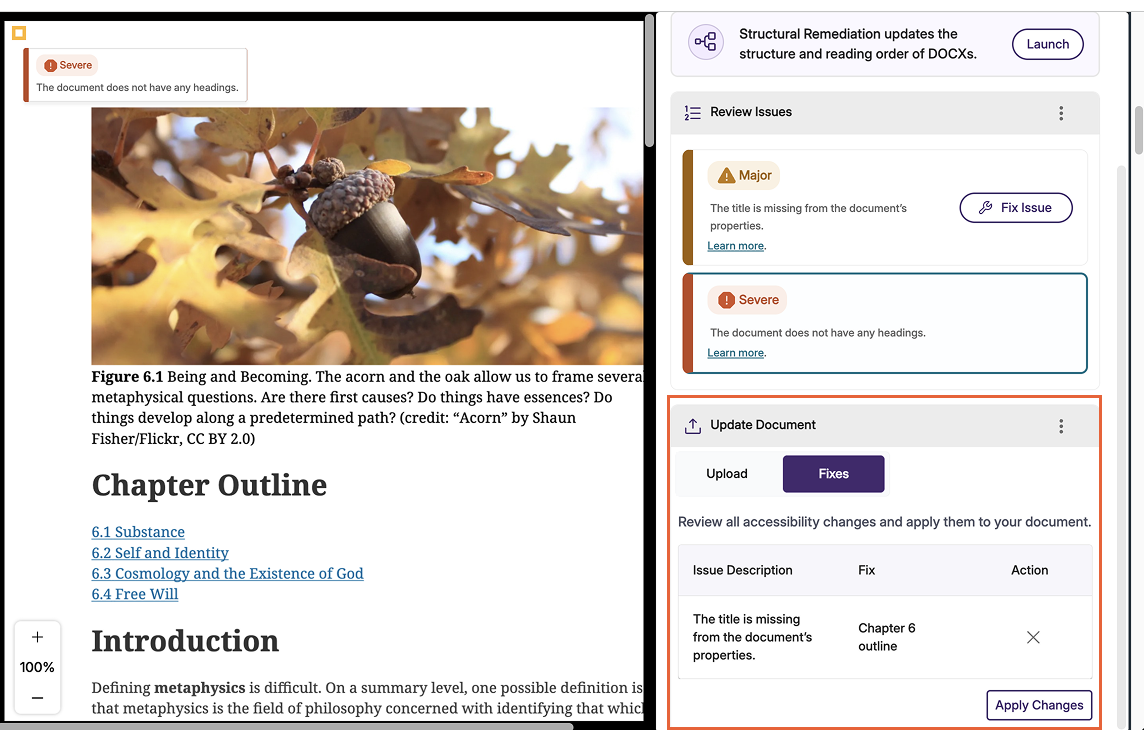
If your file is a scanned PDF with an accessibility score of zero, you will first need to generate an alternative OCR version before any review or remediation tools become available.
The Accessibility Gauge appears below the editing frame in the Canvas Rich Content Editor (RCE).
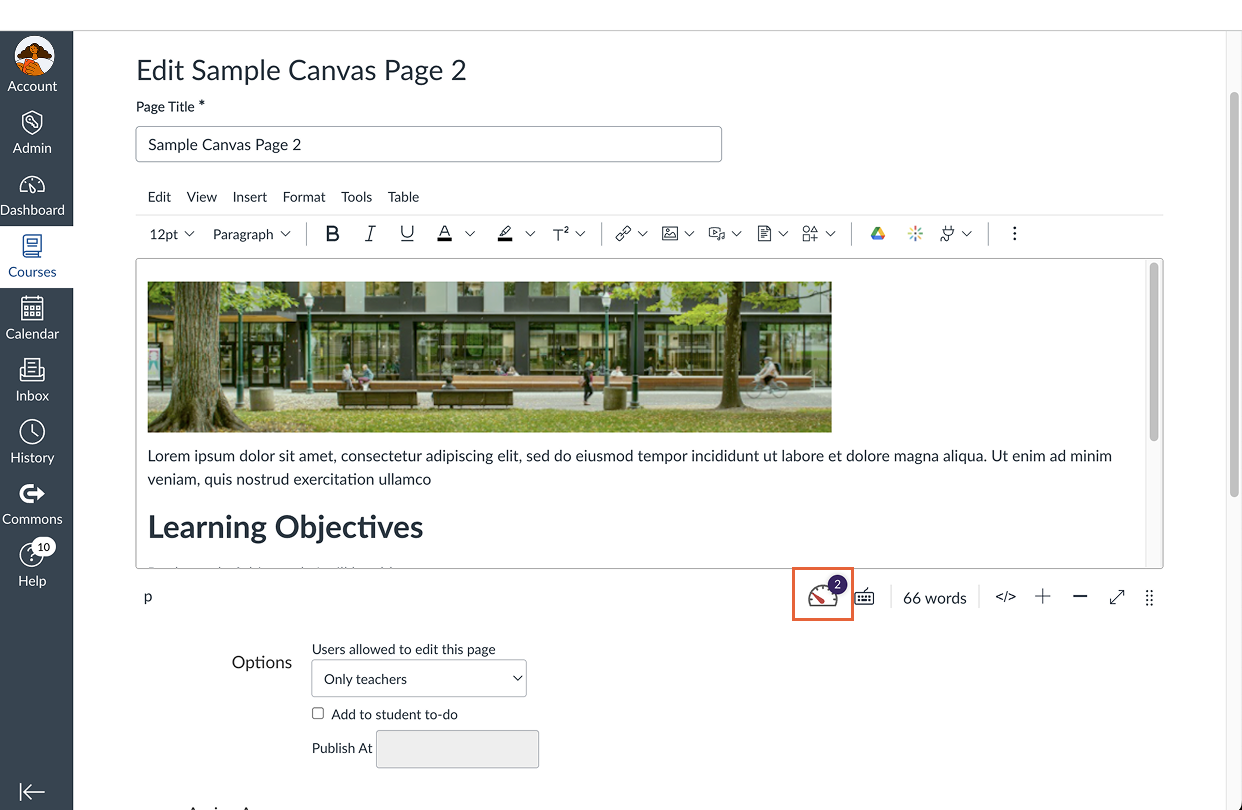
The gauge provides real-time feedback and an accessibility score based on issues detected in the content. Select the gauge to open the Accessibility Report sidebar, where you can review and fix identified issues. In most cases, the Panorama Accessibility Gauge replaces and expands upon the built-in Canvas Accessibility Checker, offering more detailed feedback and guidance for accessibility remediation.
How do students use Panorama at PSU?
Students do not see accessibility scores. However, they benefit from the improved accessibility of the course materials that you remediate using Panorama. When available, students can access course content in alternative formats, making it easier to use and understand the material in ways that support their learning needs.
Learn more and encourage students to review Getting Started with YuJa Panorama for Students to learn how to use these features. For additional support, students can contact the OIT helpdesk for help with Panorama.
Digital accessibility changes for PSU faculty
In April 2024, the U.S. Department of Justice updated Title II of the Americans with Disabilities Act (ADA) to set clear requirements for accessible web content and mobile applications used by public entities, including public universities. The rule adopts WCAG 2.1 Level AA as the technical standard. The original compliance date of April 2026 has been extended and the new compliance deadline for PSU is April 26, 2027. Learn more about Title II compliance at PSU.
You might also like























👋Need more help?
Submit a support request through our Faculty Support portal for assistance.