Customize course dates and participation settings in Canvas
Canvas course and term participation dates control when and how students can access a Canvas course. This guide will help you understand how course participation dates work and how to change them if needed.
PSU courses with CRNs are automatically set with Term Participation tied to the respective academic term of the course. For example, a CRN-bearing course offered in Fall 2024 would have term participation that starts the first day of Fall 2024 and ends the first day of Winter 2025. Instructors can adjust these default dates by changing from the course’s default Term Participation to Course Participation as described below.
How do Participation Dates work in Canvas?
Participation dates in Canvas determine when students can participate in a course. There are two types of participation settings to choose from:
- Term Participation allows for participation in a published course between default start and end dates that are set by PSU for all courses in a specific academic term. Term dates are not customizable. Term participation is the default setting for CRN-bearing PSU courses.
- Course Participation dates are customizable and allow you to extend or limit student participation in a course before or after the term dates. For example, if you want students to participate in the course before the official start of the term, you can set an earlier start date.
By default, the Start date displayed is the first day students can participate in the course, while the End date is the last day students can participate in the course, for both Term and Course participation dates. Outside of these dates, students can no longer access the course materials or assignments. Instructors can optionally allow students to view Canvas course materials before and/or after the term or course participation dates by adjusting restriction settings.
Consider granting view-only access before and/or after the start date
Instructors can optionally allow students view-only access to a Canvas course by deselecting the default restrictions to allow students to view the course before or after participation dates. Step 4 in the following instructions addresses this option.
Changing this setting allows students to review the course syllabus and available Canvas course materials without being able to participate in any of the Canvas activities or assignments until the official start of the term.
Changing this setting allows students to review the course syllabus and available Canvas course materials without being able to participate in any of the Canvas activities or assignments until the official start of the term.
How do I change Course Dates in Canvas?
1. Select the course you want to edit from your Canvas dashboard
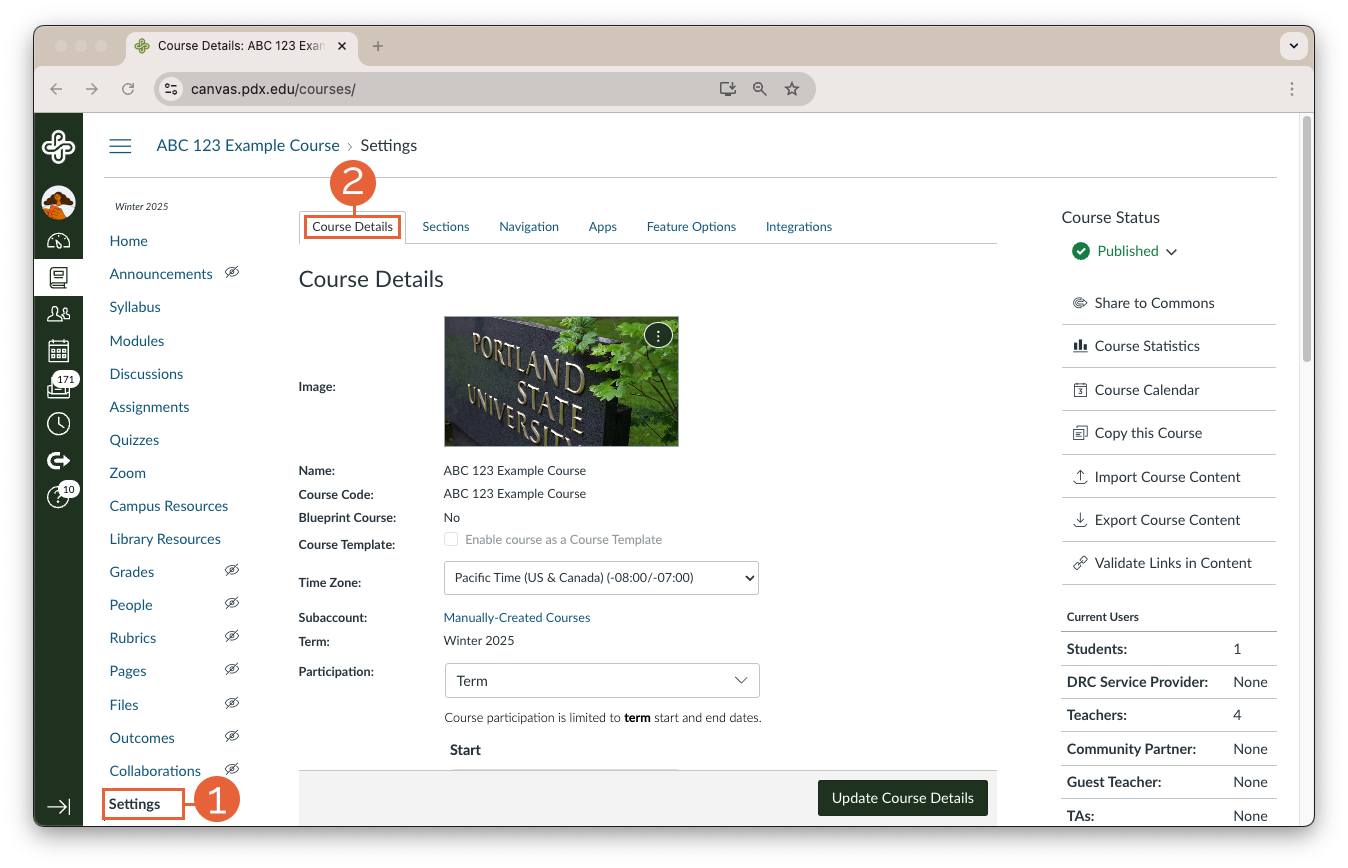
2. Navigate to Course Settings
- Scroll down the course navigation menu on the left side and click on Settings (1) and select the Course Details (2) tab.
3. Update Custom Course Participation Dates
- Change the Participation drop-down to Course (3).
- Enter the desired Start and End Dates (4) for your course. Make sure the dates align with your teaching plan.
Note: Both start and end dates must be entered or Term dates will remain in effect.
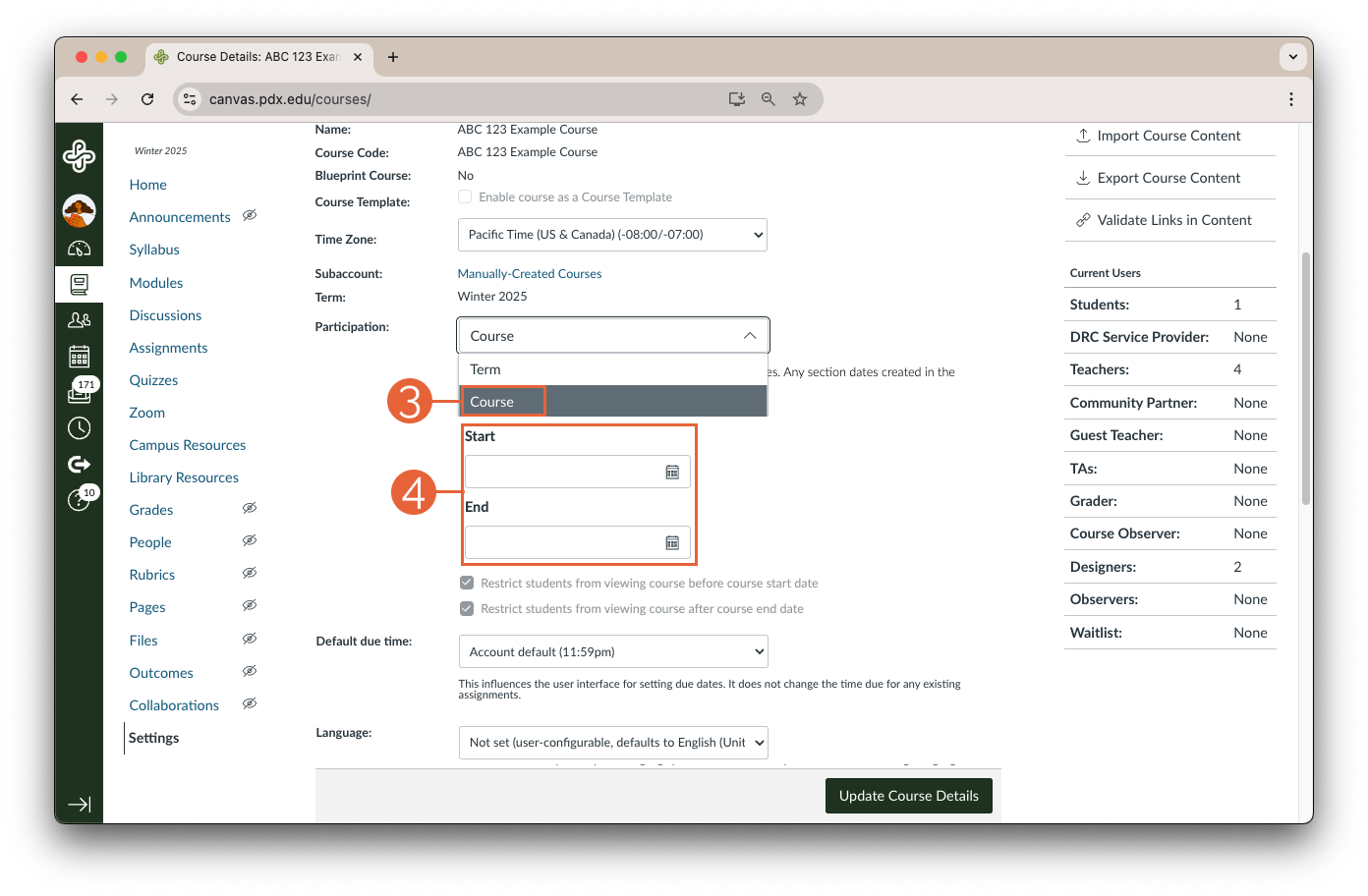
4. Optionally, deselect the default restrictions to allow students to view the course before or after participation dates.

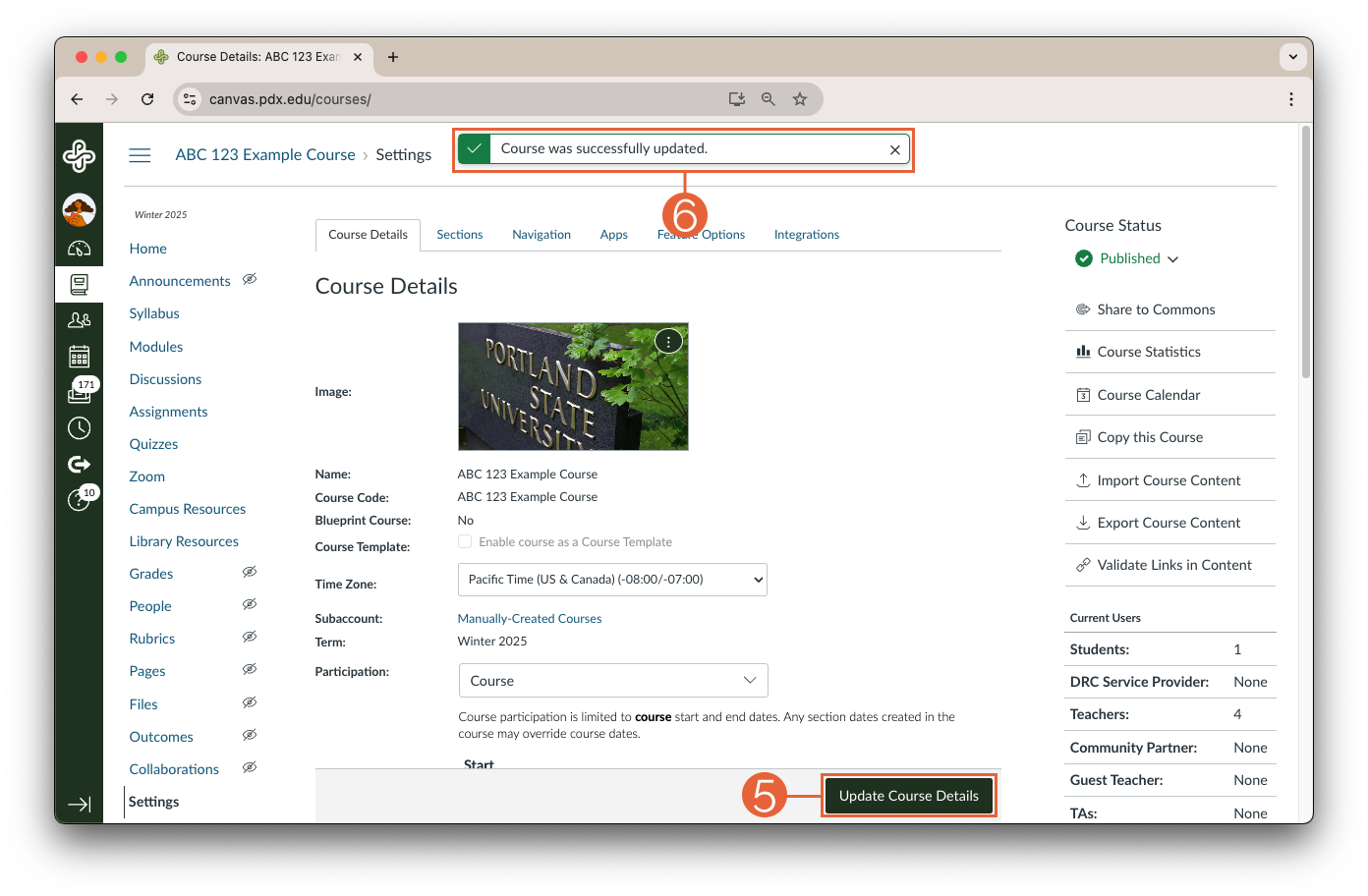
5. Save Your Changes
- Scroll to the bottom of the page and click Update Course Details (5).
- A message will appear at the top of the page confirming that you have successfully made the update (6).
Frequently Asked Questions
What if I choose course participation and don't set the dates?
If you don’t set course dates, the term dates will be used instead.
Can I set dates for specific sections of my course?
Section dates cannot be edited by instructors. sections can be created for specific situations, like providing alternative access for students who need to resolve an incomplete, but you will need assistance from an OAI staff member to create the section and set the dates. More information about this can be found in the Incomplete Student Access to a Canvas Course article.
This article was last updated .
You might also like


















👋Need more help?
Submit a support request through our Faculty Support portal for assistance.