
Contributors:Kari Goin Kono, Misty Hamideh, Lindsay Murphy
This guide outlines essential, proactive strategies for creating accessible Canvas courses. It highlights key actions for improving digital accessibility, including using the Panorama Accessibility Checker and Remediation tool, organizing content with a clear Module structure, ensuring proper color contrast, and using descriptive links to support a better student experience.
Digital accessibility changes for PSU faculty
In April 2024, the U.S. Department of Justice updated Title II of the Americans with Disabilities Act (ADA) to set clear requirements for accessible web content and mobile applications used by public entities, including public universities. The rule adopts WCAG 2.1 Level AA as the technical standard. The original compliance date of April 2026 has been extended and the new compliance deadline for PSU is April 26, 2027. Learn more about Title II compliance at PSU.
What are my top priorities for creating accessible Canvas courses?
- Use the Panorama Accessibility Checker and Remediation tool to identify problematic content in your Canvas course. In most cases, Panorama can both detect issues as well as guide you through resolving them to improve the accessibility of your course.
- Organize content with Modules: Use a clear, consistent Module structure. This helps students, including those with cognitive disabilities, find materials without having to navigate through the Files area.
- Check color contrast: Ensure text has proper contrast (for example, avoid light gray text on a white background). Canvas's built-in Accessibility Checker will check for sufficient contrast.
- Use descriptive links: When you’re building Pages or Modules, make sure to update the title or link text to something meaningful.
What does an accessible Canvas course look like?
Watch the Accessibility in Canvas video (1:56) to review accessibility settings for your course.
Canvas Commons
Access PSU Course Content Templates!
The Office of Academic Innovation offers a collection of Canvas templates for Portland State faculty to help you build accessible, easy-to-navigate courses.
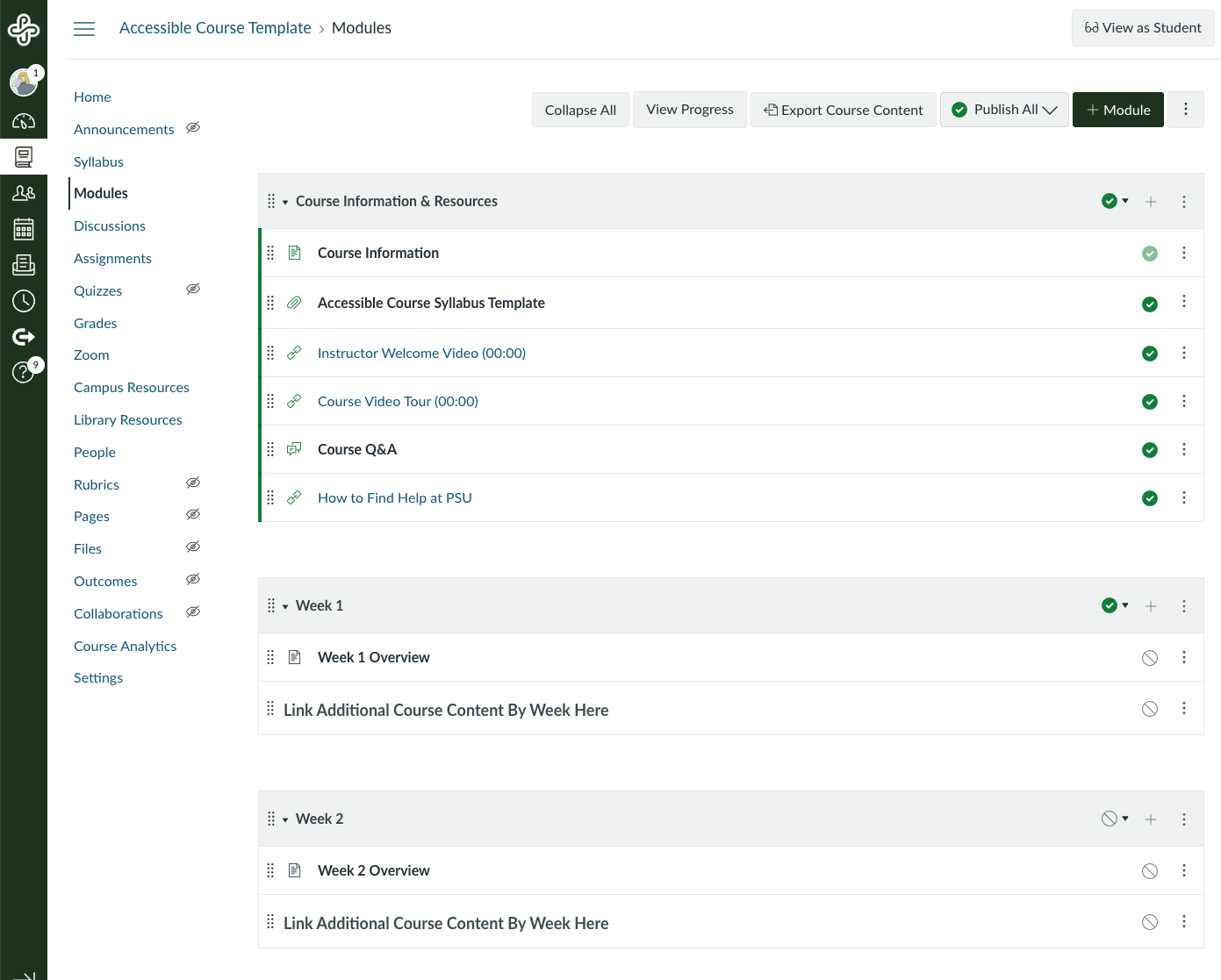
Accessible Course Template
An accessible course template with a weekly module structure and overview pages ready to be customized.
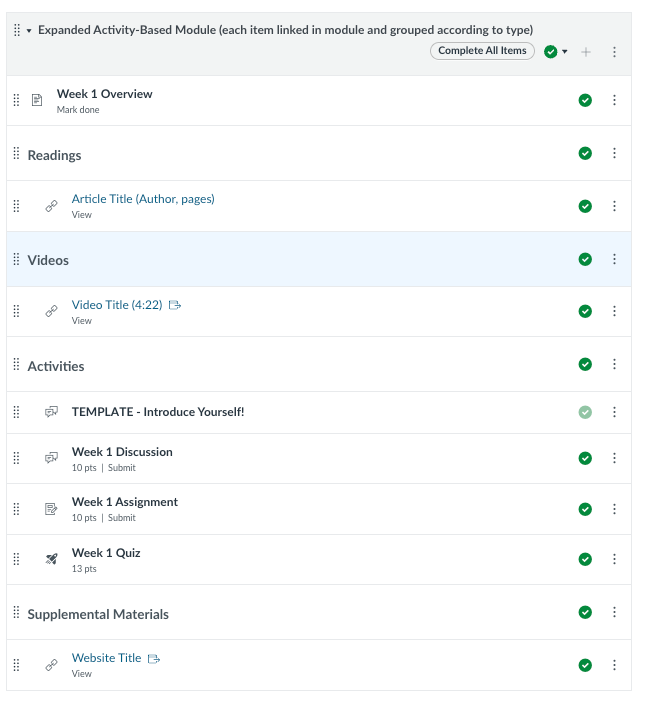
Expanded activity-based module
A detailed module template that includes placeholders for an overview page, linked readings and videos, Canvas discussions, an assignment, a quiz, and supplemental websites.
To access these templates, log in to Canvas and select Commons in the global navigation menu on the left. Then, filter the results by toggling on the Only Portland State University Approved Resources switch. Learn more about how to download Canvas Commons resources!
How do I make my Canvas course accessible?
- Use a weekly format. A consistent weekly format in Canvas Modules is recommended. This approach helps lessen student cognitive load and supports memory retention.
- Employ simple navigation. Navigation should be straightforward and predictable. One effective strategy is to name module items descriptively. For example, a discussion for Week 1 might be titled Discussion: Week 1 rather than simply Week 1.
- Use MediaSpace Video to share self-produced media. Canvas Video is not currently recommended due to spotty captions and unreliable recording and saving. We recommend using MediaSpace for your instructional video needs because it provides more reliable captioning, transcripts, and secure video hosting.
- Impose time limits sparingly. (Or not at all!) Consider reducing or removing timed assessments when possible, or extending the time or number of attempts for quizzes. In unique cases where timed assessments are deemed necessary, use the Assign To feature in Canvas to provide flexibility and support student accommodations.
- Use clear file names. Ensure file names clearly match the document’s purpose or title.
- Clearly communicate assignment due dates. We recommend using Canvas due dates, as they integrate with the Canvas app and help students track deadlines.
- Open content in a new tab. We recommend setting external links to open in a new tab in Canvas.
- Limit steps to reach content outside of Canvas. When adding additional software integrations, tools, or resources, ensure students can access content with minimal steps. Reducing extraneous navigation helps prevent students from getting lost or frustrated while trying to find content.
- Check course links. Use the Validate Links feature to identify broken links within your course. This is especially useful when copying course content from one term to another.
- Review all instructional materials. Review all slides, documents, and other materials for accessibility before publishing.
- Use the Panorama Accessibility Checker and Remediation tool. Panorama evaluates Canvas Pages, Assignments, Discussions, Announcements, and all uploaded files to highlight common issues such as color contrast and missing alternative text for images.
- Consider requesting a course review by a student tester at OAI. A student will review your course and provide direct feedback to help you create usable and accessible course experiences. Please allow 2-4 weeks for turnaround.
- Consider requesting a course review by a student tester at OAI. A student will review your course and provide direct feedback to help you create usable and accessible course experiences. Please allow 2-4 weeks for turnaround.
For a more comprehensive list of accessibility standards for WCAG-compliant Canvas courses, review the Accessible Canvas Course Worksheet!
Where can I find more accessible Canvas course resources?
This resource offers a practical overview of accessibility at Portland State University and its implications for your teaching.
Canvas has specific keyboard shortcuts for users who navigate their course through the keyboard.
This resource offers pedagogical strategies around accessibility.
Take the PSU Instructional Digital Accessibility Training!
For more in-depth, structured learning about digital accessibility, OAI offers an asynchronous training course for instructors.
Includes directions on how to:
- Apply WCAG guidelines to your content.
- Identify accessibility barriers in learning content.
- Conduct self-evaluations of digital content.
- Remediate inaccessible content based on best practices.
- Integrate cognitive accessibility principles for diverse learners.
- Plan for accessible content creation in the future.

Instructional Digital Accessibility Training
Take this Canvas course for an introduction to digital accessibility in higher education. Course…
You might also like






































👋Need more help?
Submit a support request through our Faculty Support portal for assistance.