
Set up your gradebook
Regardless of whether you teach in person or online, using Canvas to collect and assess student work can help to support student success and streamline your teaching. By taking a little time before the term starts to set up your assignments and gradebook, you can avoid confusion and frustration for both you and your students.
Why should I use Canvas Assignments and the Gradebook?
Using Canvas Assignments and the Gradebook together creates a clear, streamlined workflow for both you and your students. Collecting student work through one of the Canvas assignment tools keeps everything relevant and organized in one central location, allowing students to focus on learning rather than finding their assignments.
- Streamline your grading. You can use SpeedGrader for faster review, clickable rubrics, and personalized feedback. Grades and feedback for Canvas assignments can be automatically posted to the Canvas Gradebook. You can also message students directly from the Gradebook (e.g., “remind everyone who hasn’t submitted yet”).
- Give students real-time feedback. Students can see their progress throughout the term, not just at midterms or finals. Transparent grading helps them make informed decisions about effort, study habits, and participation.
- Keep grades accurate and consistent. Canvas has tools to calculate totals, apply weighting , and drop the lowest scores , ensuring that grades align with your syllabus.
How do I set up my gradebook properly?
The first step to making sure your Gradebook is set up properly is to spend some time building your assignments. The Assignments page in your Canvas course is the blueprint for your gradebook; anything that needs to be in the gradebook must first be added to the Assignments page.
For help with creating your Assignments, check out the Canvas Assignments tutorials.
Once you have all your assignments created, make sure that your assignment groups and gradebook settings are configured properly. Consider each of the following settings:
- Assignment groups
- Calculating missing assignments
- Grade display options
- Grade posting policy
After you review each of the recommended settings, you can check to make sure grades are displaying as expected by using the Test Student account. This is the last “student” listed in your Grades class roster. In that row, enter the maximum point value for each graded activity. Then select Test Student and Grades to see a student’s view of your current grade visibility and display settings.
In Canvas, assignment groups allow you to organize assignments into logical categories (such as quizzes, papers, homework, etc.). Every graded activity must be placed into an assignment group. Each group creates a new subtotal column in your gradebook that displays each student’s percentage of total points earned for that particular group.
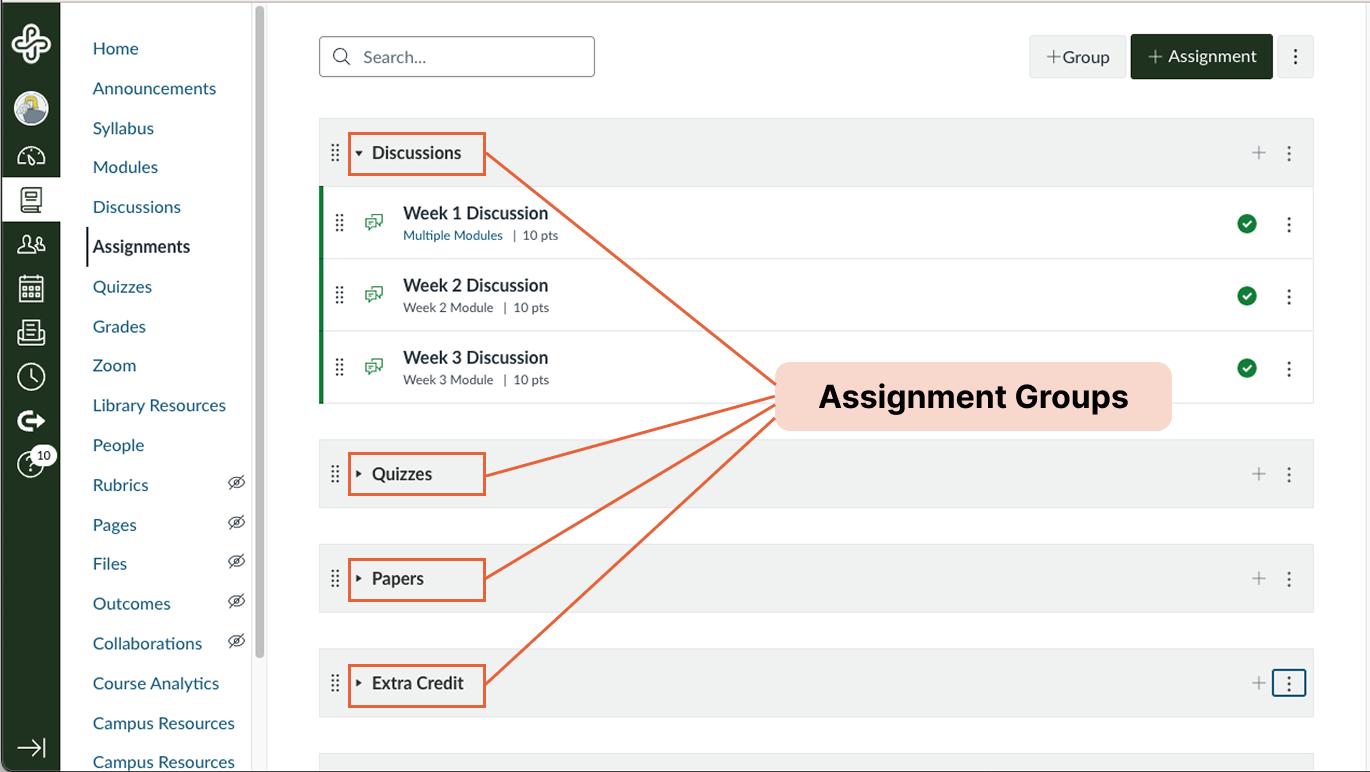
Adding assignment groups to your Canvas Gradebook can be especially useful for:
- Keeping your gradebook organized
- Weighting grades by category
- Applying rules such as dropping the lowest score
If you are copying a previously offered course into a new Canvas shell, you will notice an extra, empty assignment group at the top of the Assignments page. This group is part of the default template and will create an empty subtotal column in the gradebook. To reduce student confusion, delete this extra assignment group before publishing your course.
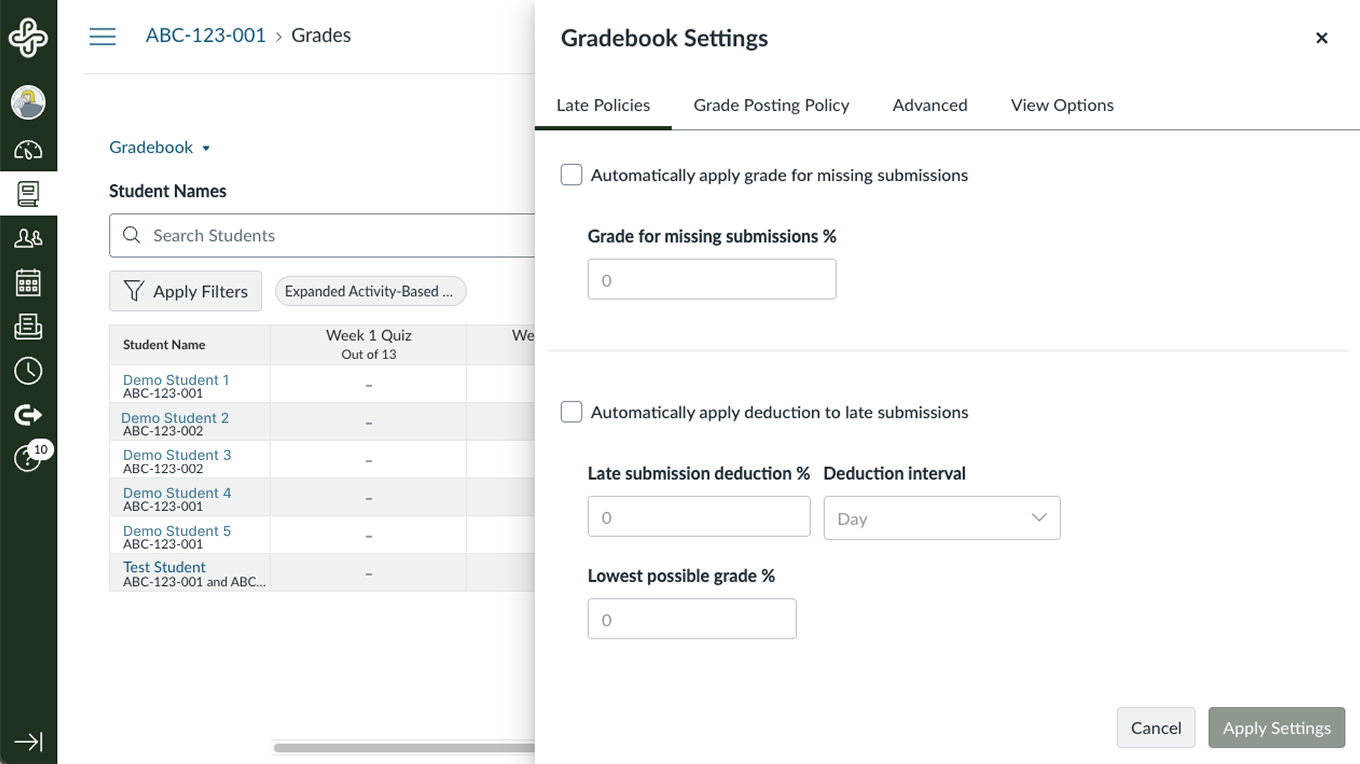
By default, the Canvas gradebook totals only positive scores. Missing assignments are not automatically calculated as zero. This can cause students to think they have a higher grade than they actually have if you do not manually enter zeros where necessary.
To ensure that your gradebook accurately reflects students’ work, consider applying a grade of 0% for missing assignments. This setting will affect all assignments in the course, but will only be applied once the due date for an assignment has passed. If a missing assignment is later submitted, the new submission must be updated in the gradebook for the grade to change.
Apply a missing submission policy for all course assignments
In Canvas Grades, student scores are shown by default as percentages. If you want to display assignment scores as a letter grade, you must select a grading scheme. You can enable the default grading Canvas scheme or create your own in Course Settings, as long as it conforms with the Portland State grading scale .
Selecting a grading scheme will display a letter grade in the course Total column but not in the individual assignment columns.
Individual grade display options
Each graded assignment you create automatically generates a column in the gradebook. You can select how you want the grade for each individual assignment to be displayed. By default, it will be displayed as a point value. However, you can also change this to:
- Points – Default setting shows actual points received out of the total possible points.
- Percentage – Displays grade as a percentage.
- Complete/incomplete – Uses checkmarks or X’s to indicate completion status. Canvas will add the total possible points for that item into the students’ final grade total. You can set the total points to zero if you do not want students to receive a grade for this assignment.
- Letter grade – Requires a grading scheme to be enabled for the assignment .
- Not graded – Useful for practice activities, for preparation work, and for allowing an activity to appear in the course flow but not count toward grades.
Instructor view

Student view

Grade distribution statistics
By default, students can also view grade distribution statistics for a course. To hide that data from students, follow these steps: How do I hide grade distribution scoring details from students ?
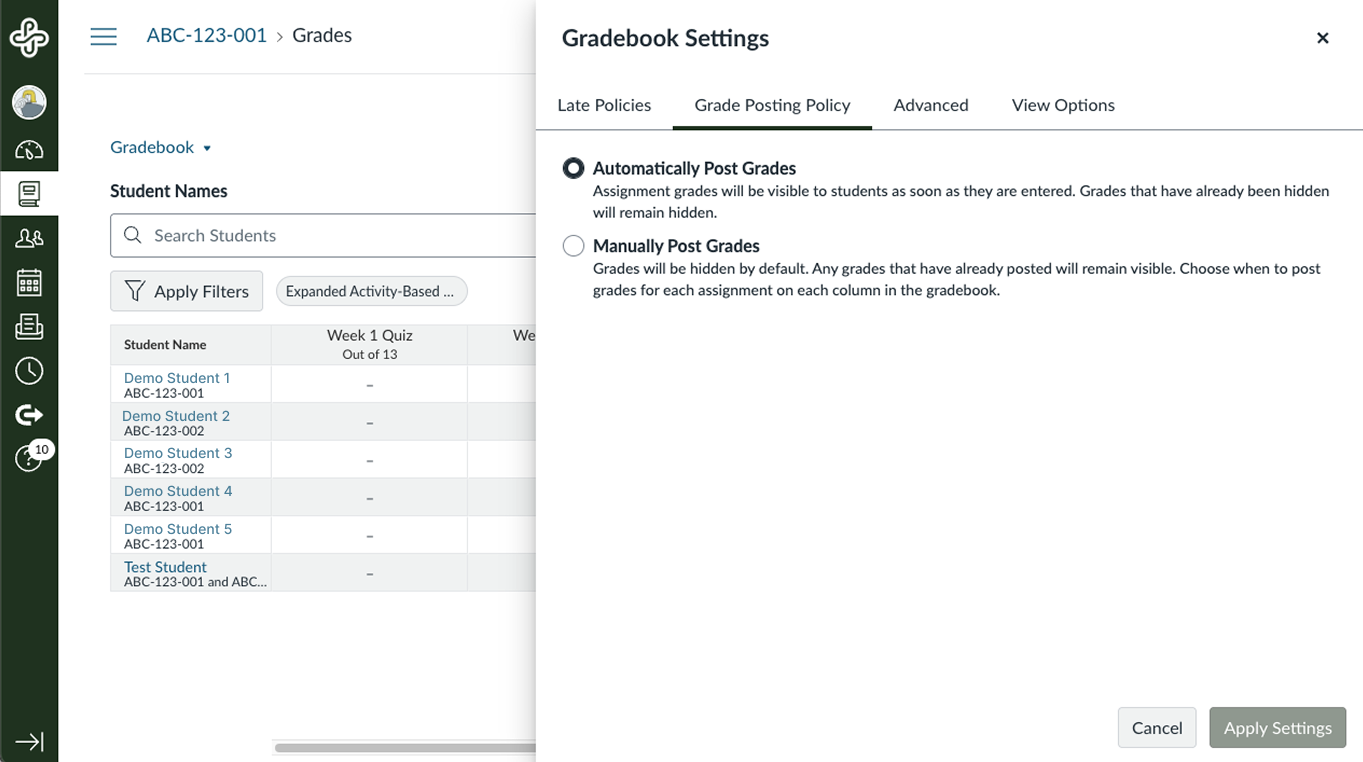
By default, Canvas automatically posts grades to students as you enter them. However, you may prefer to grade an assignment for all students before releasing the grades. In this case, you may want to change the grade posting policy setting so that grades are posted manually. Changing this setting allows you to choose when to make assignment grades visible to students. This setting can be made at the gradebook level (the policy affects all assignments) or the individual assignment level.
If you copy an entire course the course posting policy from the original course will be copied into the new course. This will override any grade posting policy settings you have in the new course. Additionally, imported assignments will retain their assignment posting policy from the original course.
This article was last updated .
You might also like











👋Need more help?
Submit a support request through our Faculty Support portal for assistance.