You might also like

👋Need more help?
Submit a support request through our Faculty Support portal for assistance.

This tutorial outlines the main in-recording controls and how to enable multi-stream recording in Kaltura Capture.
If you are making many recordings in Kaltura Capture, you may find it helpful to use the keyboard shortcuts to quickly control recording functions. It may be useful to write down your preferred controls on a sticky note attached to your computer for easy reference while recording.
These keyboard shortcuts are only available once you launch Kaltura Capture.
Kaltura capture includes a number of digital annotation tools you can use to mark up your screen while recording.
These keyboard shortcuts are only available once you launch Kaltura Capture.
Select the pencil icon (2) to use the screen annotation tools.
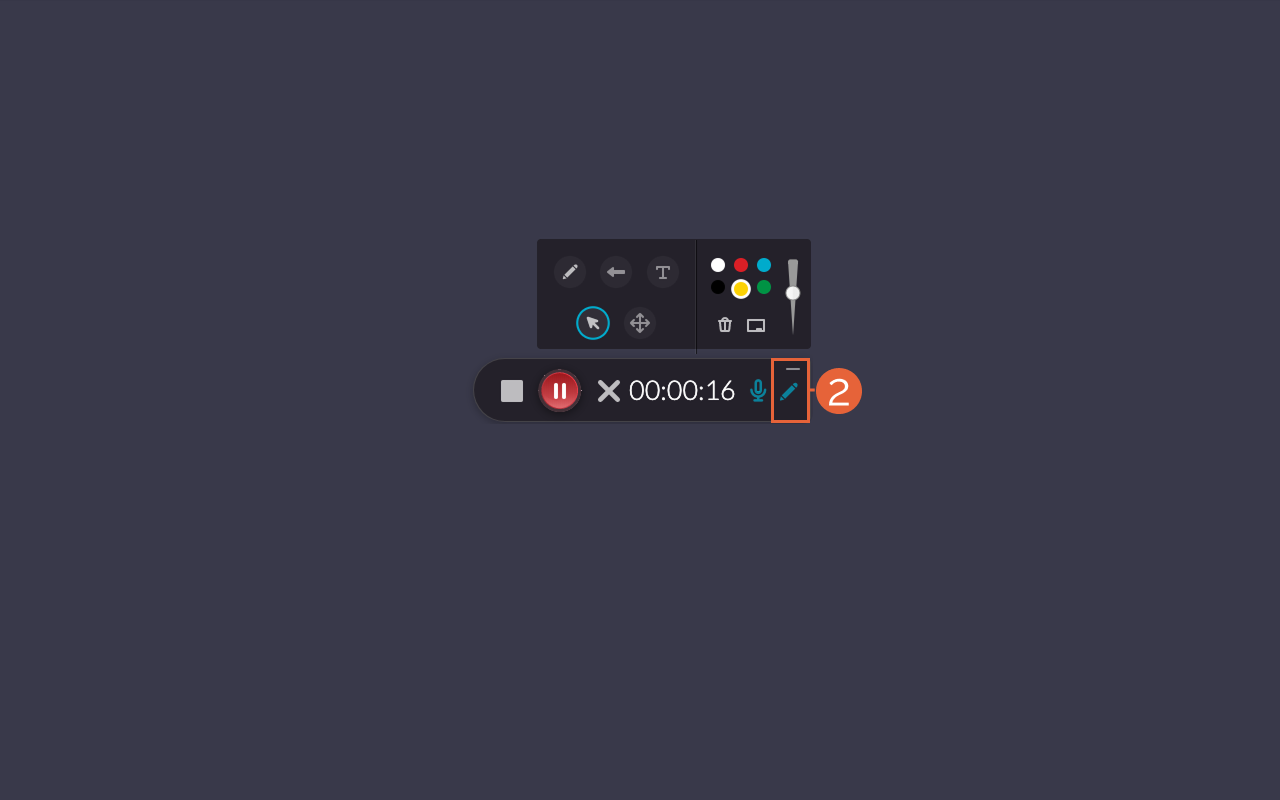
The annotation tools in Kaltura available to you include:
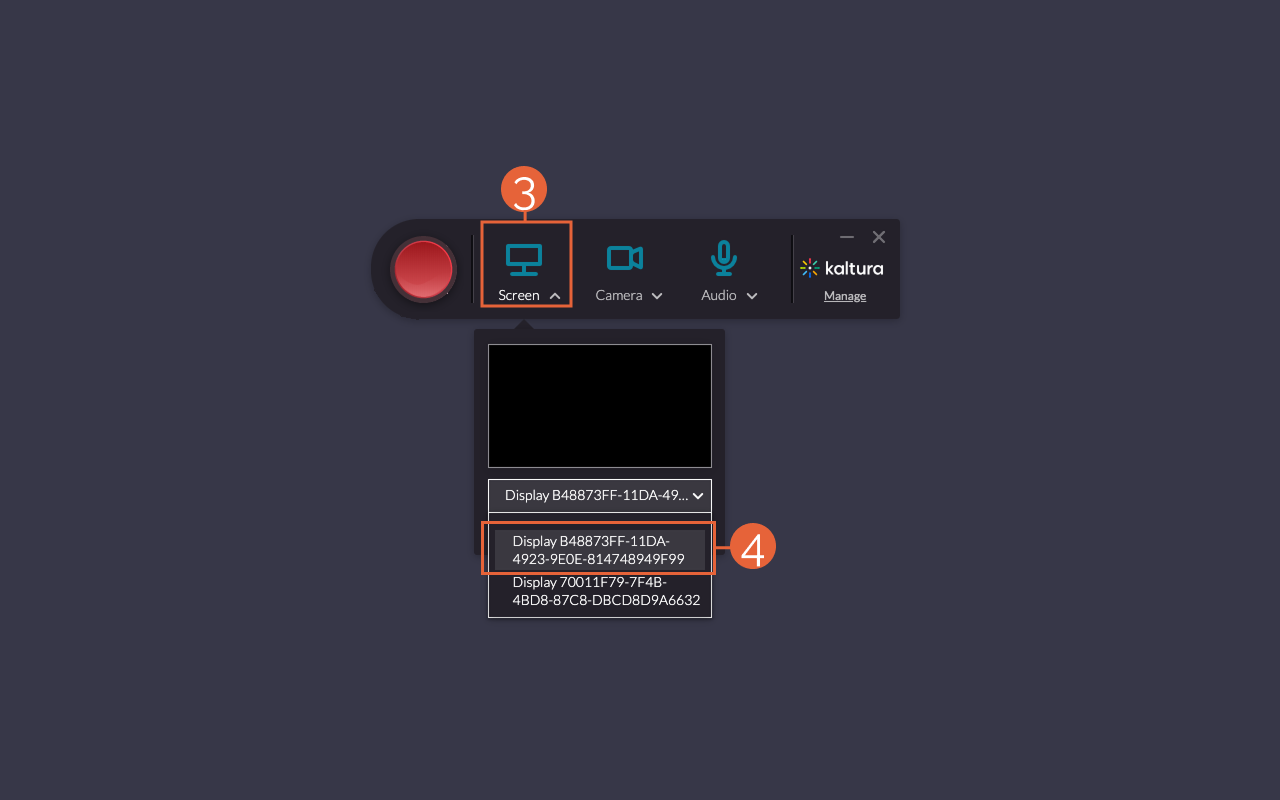
Advanced users may need to record more than one screen or video steam at time. This tutorial demonstrates how to enable multi-screen recording, but you will follow similar steps to enable other multi-video recording.
NOTE: Kaltura Capture enables a maximum of 2 video sources, so you may record screen and camera, 2 screens, or 2 cameras.
This article was last updated .
Submit a support request through our Faculty Support portal for assistance.